PDF to QR Code Generator
Turn any PDF into a scannable QR code — share menus, brochures, and documents that you can update anytime without reprinting.





Free PDF to QR code generator
Convert your PDF into a QR code and make your document easy to access with one scan.

What Is a PDF QR Code?
A PDF QR code lets anyone access and download your document instantly with a single scan. Instead of emailing files, printing long URLs, or asking users to search for a document online, you can share a QR code that opens your PDF directly on any device.
You can convert a PDF into a QR code and use it to share menus, product manuals, guides, white papers, reports, training materials, tutorials, brochures, catalogs, and other educational or marketing documents with your audience.
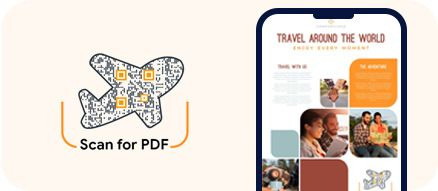
A PDF QR code is useful when your document needs to be easy to access across both online and offline channels. Users can scan the QR code from a brochure, product package, poster, menu, event display, email, or website and open the PDF without typing a link.
With QRCodeChimp, you can create a PDF QR code by uploading a PDF file or using an existing PDF URL.
How Does a PDF QR Code Work?
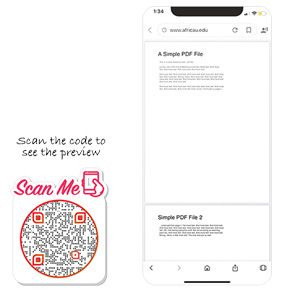
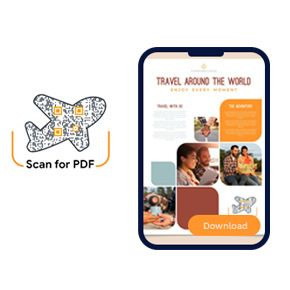
A PDF QR code turns your document into a scannable digital link. When someone scans the code, your PDF opens or downloads on their device, depending on the browser, device, and file settings.

Benefits of Using a QR Code for PDF
From easy sharing to better user engagement and experience, a PDF QR code has many benefits. It helps businesses share documents faster, reduce friction, and make PDF content accessible across print and digital channels.
Quick access
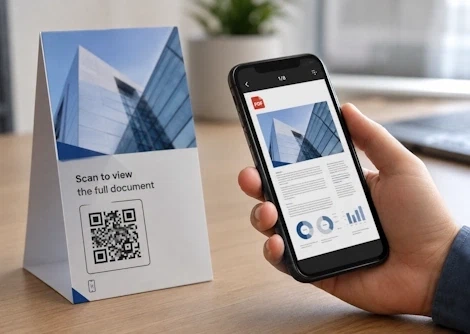
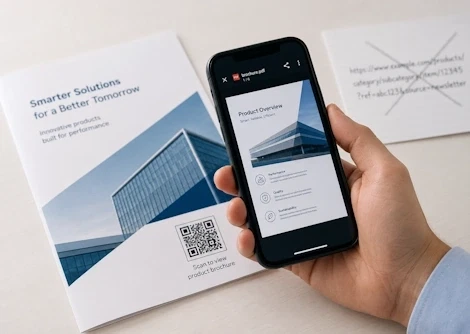
A PDF QR code gives users instant access to your document. They can scan the code with their smartphone to view or download your PDF within seconds. You can place PDF QR codes on posters, brochures, packaging, billboards, menus, product labels, or event materials to share files with offline audiences as well.
Better user experience
PDF QR codes make it easier for users to access your content. Instead of typing long URLs from print ads, brochures, or product packaging, users can scan the QR code and open your PDF instantly. This reduces friction and helps users get the information they need faster.
Real-time editing
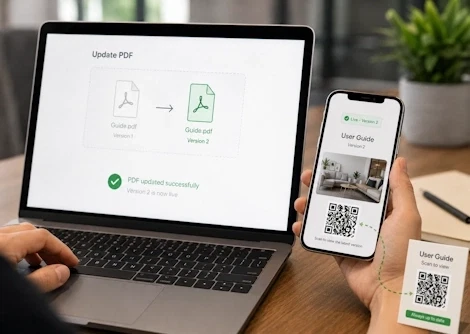
With a dynamic PDF QR code, you can update your document anytime without changing or reprinting the QR code. Simply replace the linked PDF in your dashboard, and the same QR code will deliver the latest version. This is useful for menus, product catalogs, brochures, event schedules, price lists, reports, and manuals that may change over time.

Tracking and analytics
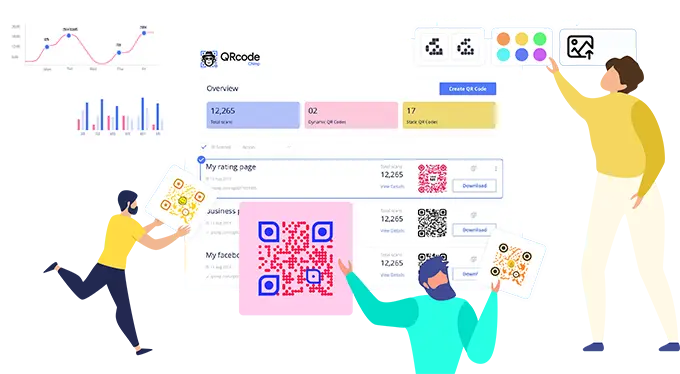
A dynamic PDF QR code lets you track performance through detailed analytics. In your QRCodeChimp dashboard, you can monitor total scans, locations, devices, and browsers used. This data helps you measure engagement, understand your audience, and make better marketing decisions.
Better marketing
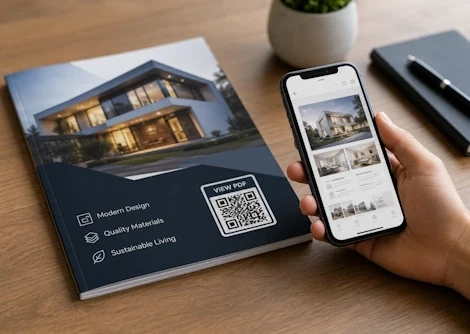
PDF QR codes make brochures, product sheets, case studies, white papers, catalogs, and guides instantly accessible. Sharing valuable content at the right moment builds trust, drives engagement, and supports informed purchase decisions.
Lower printing dependency
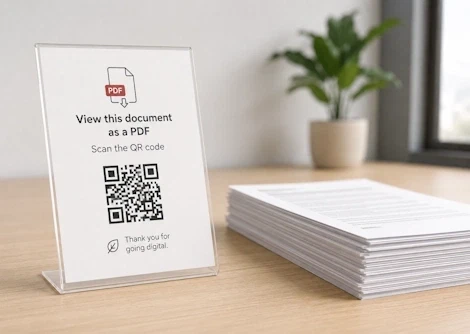
Instead of printing long documents in full, you can print a QR code that links to the PDF. This helps reduce printing costs and makes it easier to update document content when needed.
Where Should You Use a PDF QR Code?
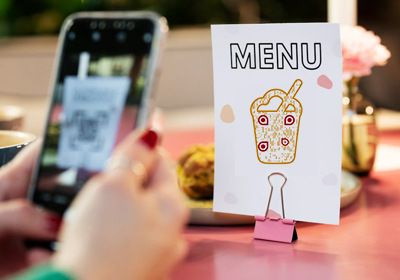
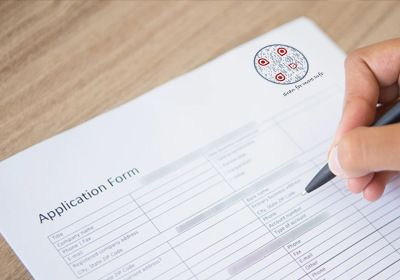
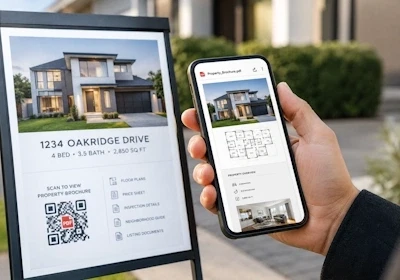
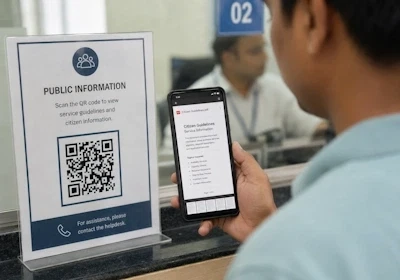
PDF QR codes are versatile, and you can use them across many business, education, healthcare, hospitality, retail, and event use cases.





How to Get More Scans on Your PDF QR Code?
Creating a PDF QR Code is only half the job done. You must ensure people scan it in large numbers. Follow these tips to get more scans on your PDF QR code.
Use the right QR code size
When printing a PDF QR code, make sure it is large enough to scan comfortably. A small QR code can be difficult to scan, especially on posters, packaging, brochures, or outdoor materials.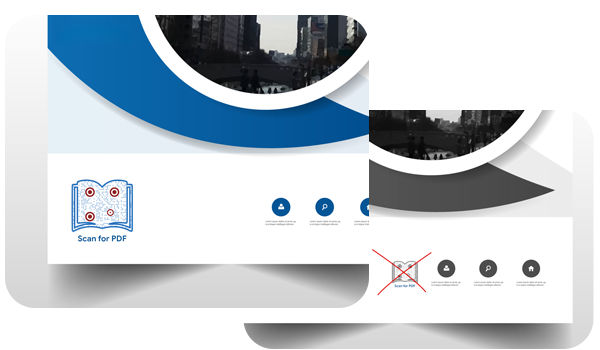

Design an eye catching QR code
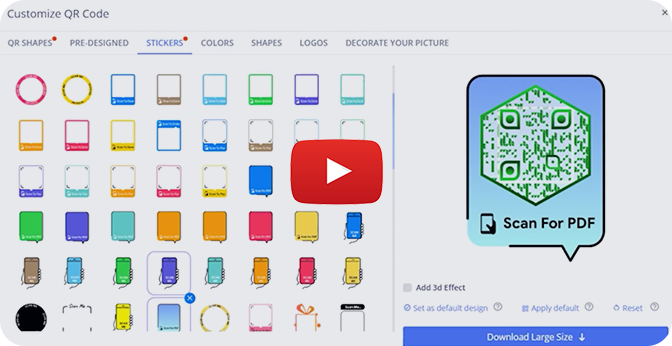
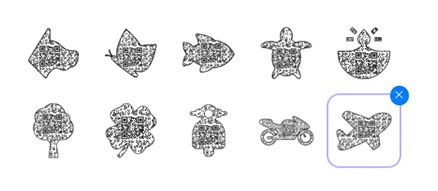
Use custom shapes, brand colors, and premade designs in QRCodeChimp to make your PDF QR code look professional and on-brand. Keep enough contrast between the QR code and background so it remains easy to scan.Add a clear call to action
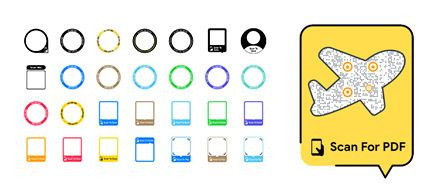
Use a sticker with built-in CTA text to tell users what they will get after scanning. For example, you can use scan prompts that make it clear the QR code opens a PDF menu, brochure, guide, catalog, report, or manual.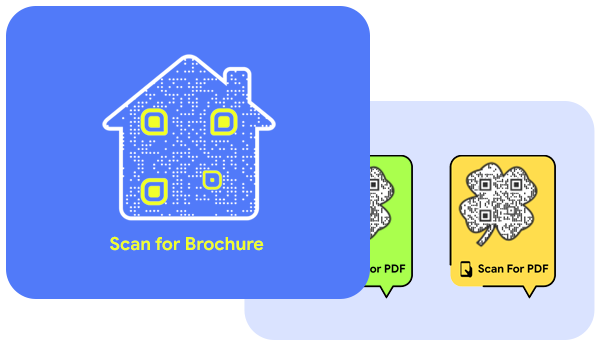

Use your brand logo
Add your company logo to the QR code to align it with your brand and build recognition. A branded QR code looks more trustworthy and fits better into your marketing materials.Add a short description
Add a brief description near the QR code explaining what users will receive after scanning. For example, “Scan to view the product manual” or “Scan to download the brochure.” This can increase scan intent and reduce uncertainty.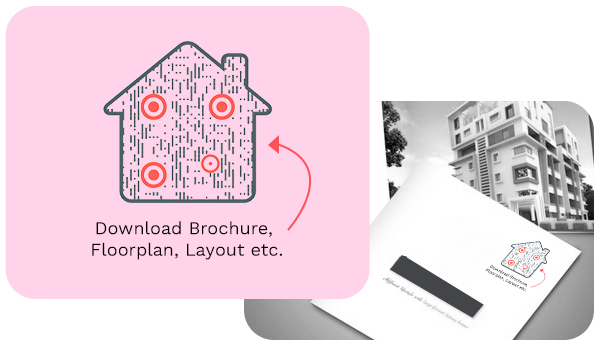
Test before printing
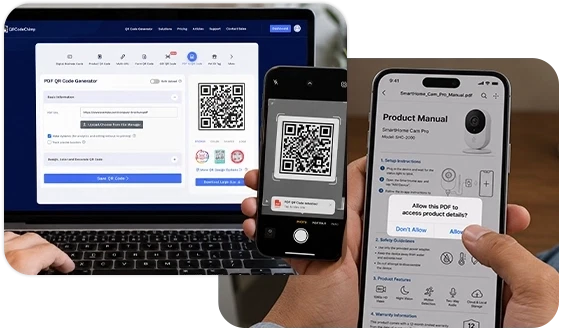
Always scan your PDF QR code on multiple devices before printing or publishing it. Check that the PDF opens correctly, loads properly, and has the right access permissions.Use dynamic QR codes
If your document may change later, use a dynamic PDF QR code. This lets you update or replace the PDF without changing the QR code or reprinting your materials.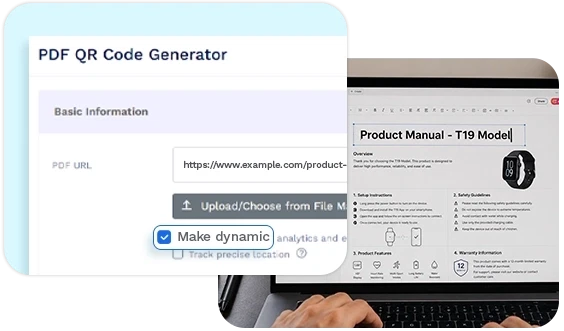
Create and Manage PDF QR Codes With QRCodeChimp
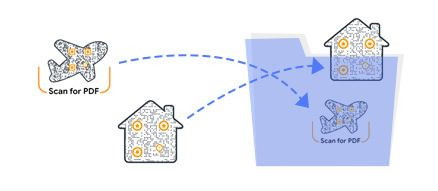
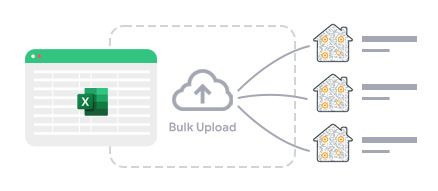
QRCodeChimp’s PDF QR Code Generator allows you to create branded QR codes for your PDF files, track scan performance in real time, and manage documents efficiently. The key features are:



Frequently Asked Questions
- How do I create a QR code for a PDF?
- Can I create a PDF QR code for free?
- How do I create a PDF QR code using Google Drive?
- How do I create a PDF QR code using Dropbox?
- Can I create a PDF QR code using an existing PDF link?
- Can I convert a Word document into a QR code?
- Can I update the PDF after printing the QR code?
- Can I track scans on a PDF QR code?
- How can users access the PDF from a PDF QR code?
- Why should I use a PDF QR code?
- How do I create a link to a PDF?
- Can I create a QR code for brochures, catalogs, or guides?
- Can I create a QR code for a document?
Frequently Asked Questions
How do I create a QR code for a PDF?
QRCodeChimp's QR code generator for PDF allows you to easily convert your pdf to QR Code for free and online to share in your marketing campaigns, such as product manuals, restaurant food menus, property listing brochures, lead generation eBooks, documentation. Here are the steps:
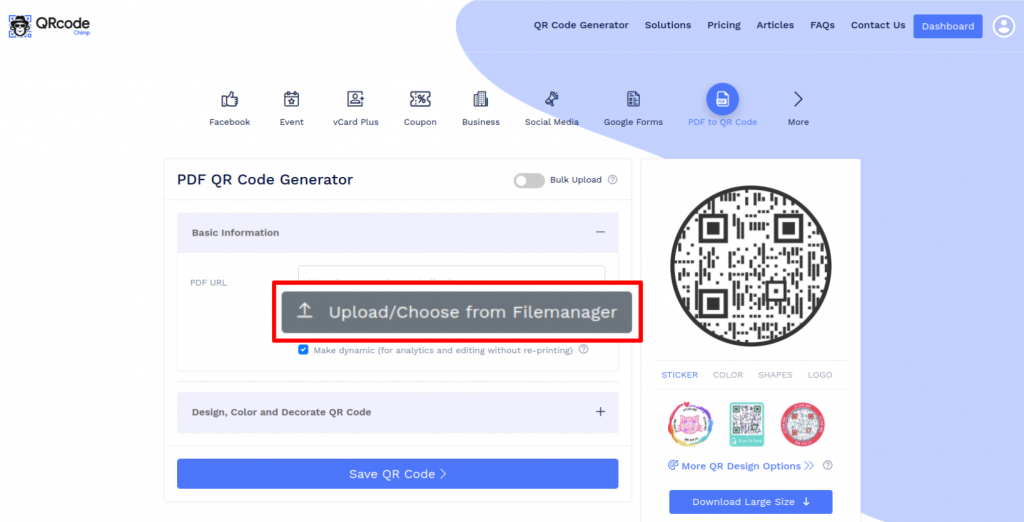
Step 1: Select 'Choose from File Manager'
Click on the ‘Upload/Choose from File Manager’ button.
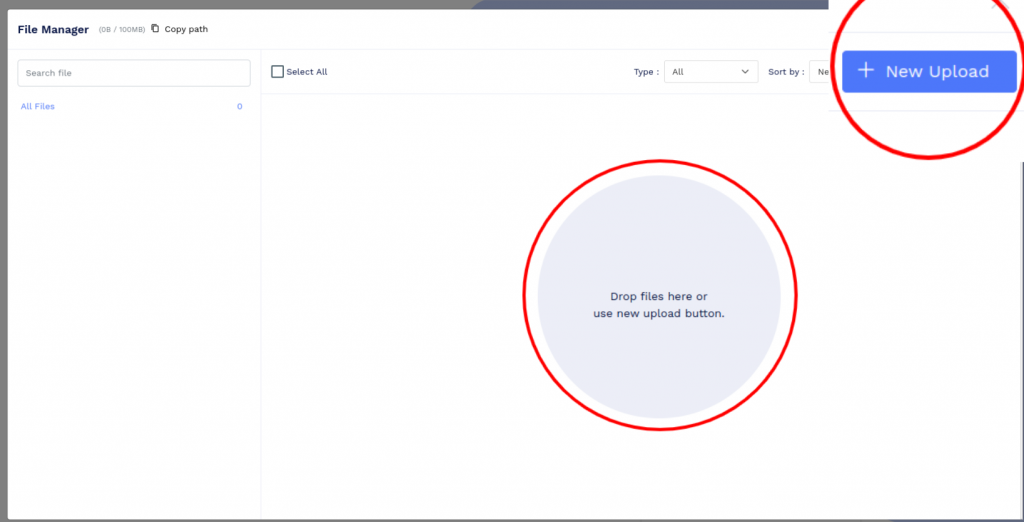
Step 2: Upload Your PDF File
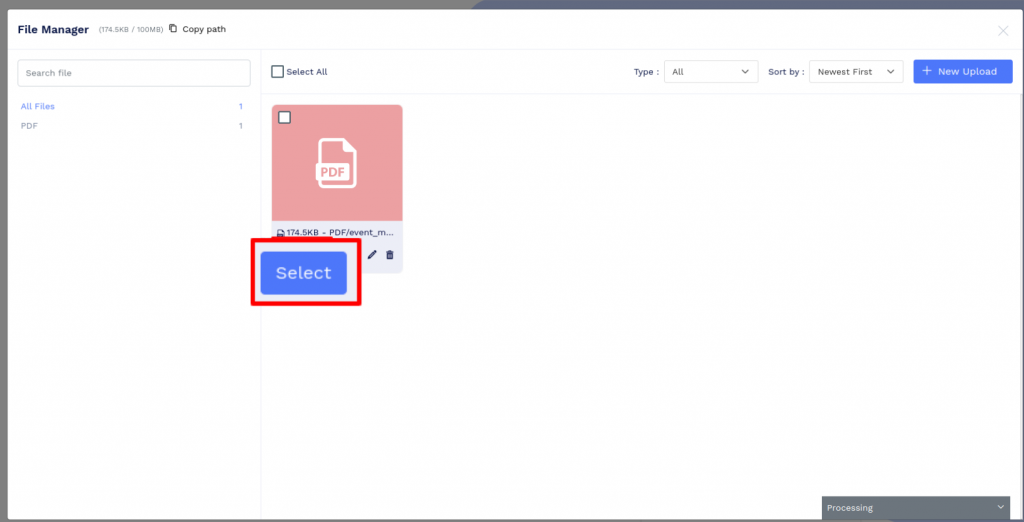
Upload the PDF file by clicking on the ‘New Upload’ button or by ‘dropping the file’ in the file manager.
Step 3: Select Uploaded PDF File
Click on the ‘Select’ button of the uploaded PDF file.
Step 4: Design Your QR Code
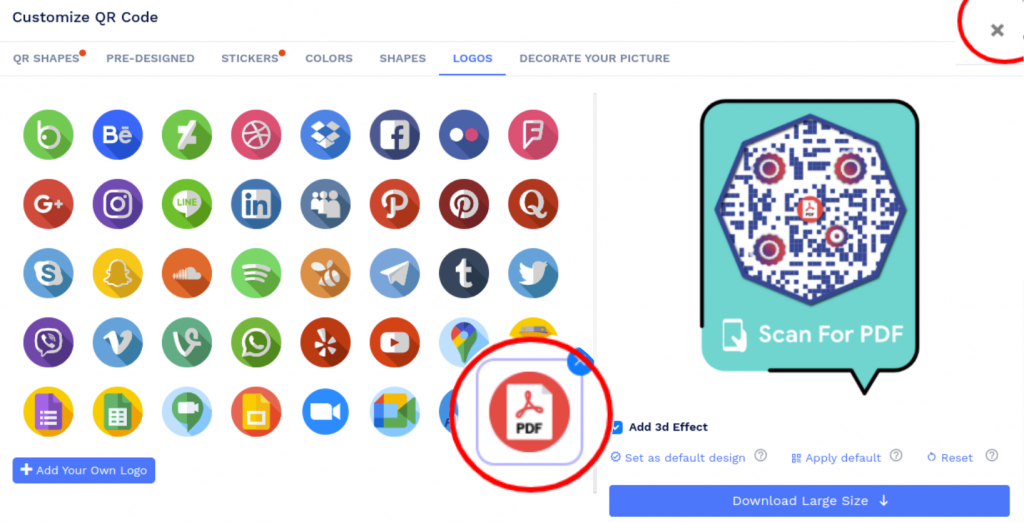
Click on 'Design Color and Decorate QR Code' to customize your QR Code design (ex: adding a PDF logo).
Note: Click on the ‘x’ icon of the ‘Customize QR Code’ popup to save changes.
Step 5: Save and Download
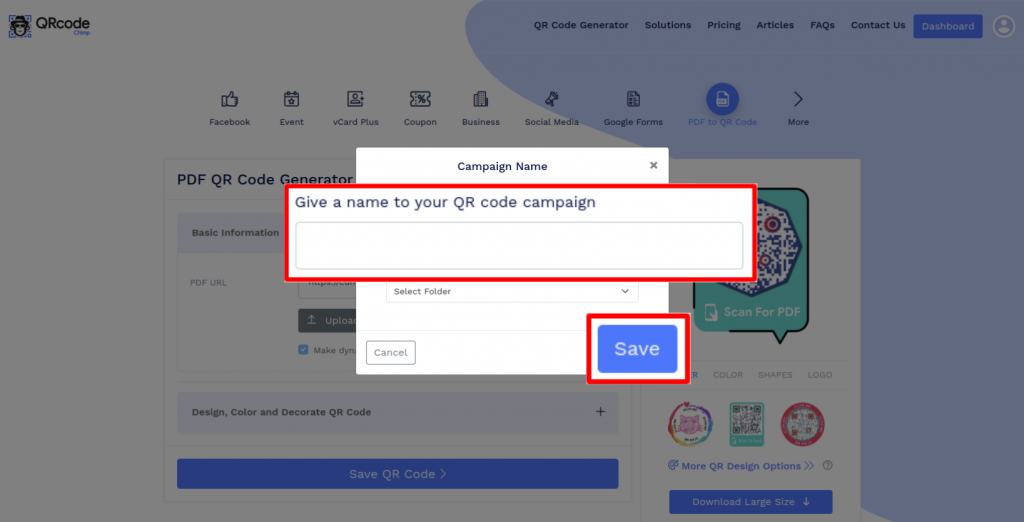
Save the QR Code by clicking on the ‘Save QR Code’ button, entering the QR name and then clicking on the ‘Save’ button.
Note: Make sure to scan your QR Code from different devices (iOS and Android) before printing for production.
Can I create a PDF QR code for free?
Yes. You can create a PDF QR code by uploading a PDF file or using an existing PDF URL, then customize and download the QR code for print or digital sharing.
How do I create a PDF QR code using Google Drive?
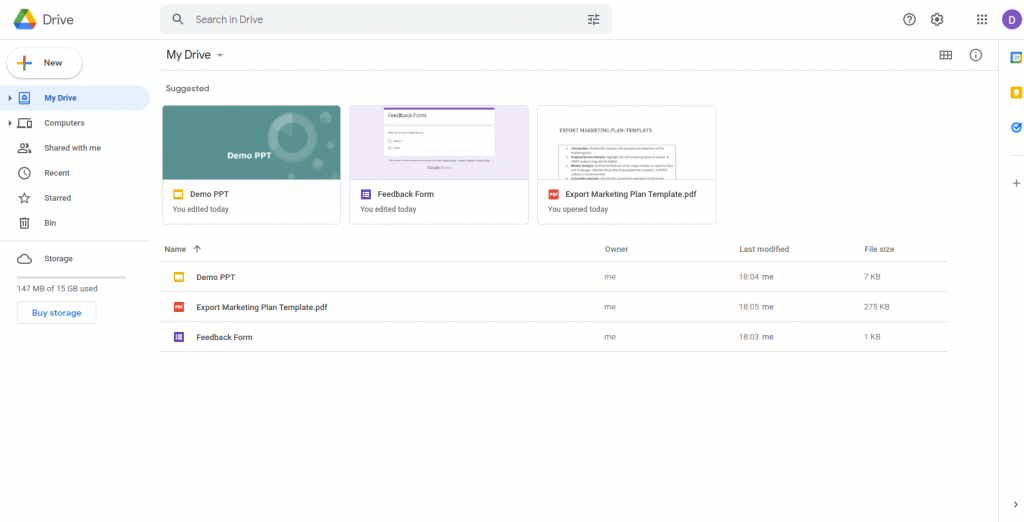
You can also create a PDF QR code from a Google Drive URL. Follow these steps to get started:
Step 2: Upload Your PDF File
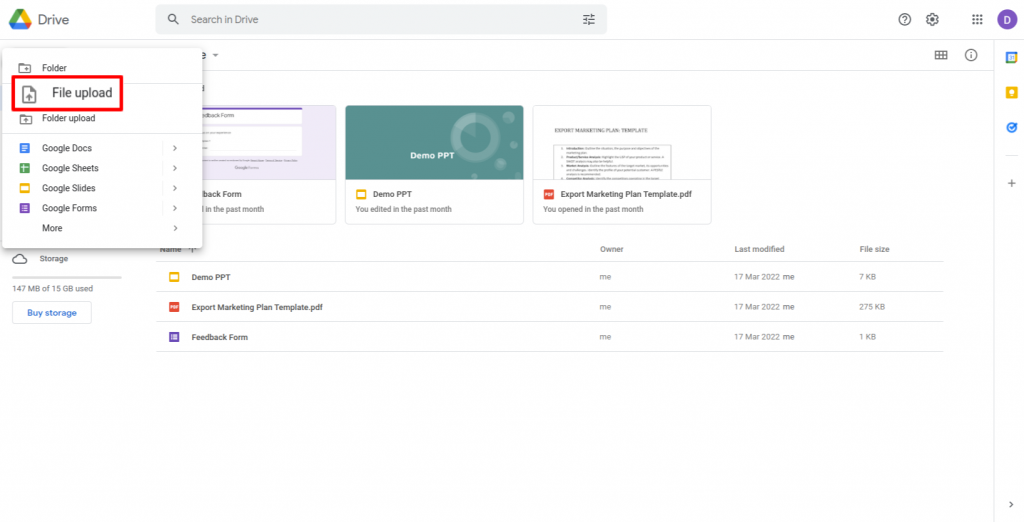
Upload your PDF file by clicking on ‘New’ and then on ‘File upload’.
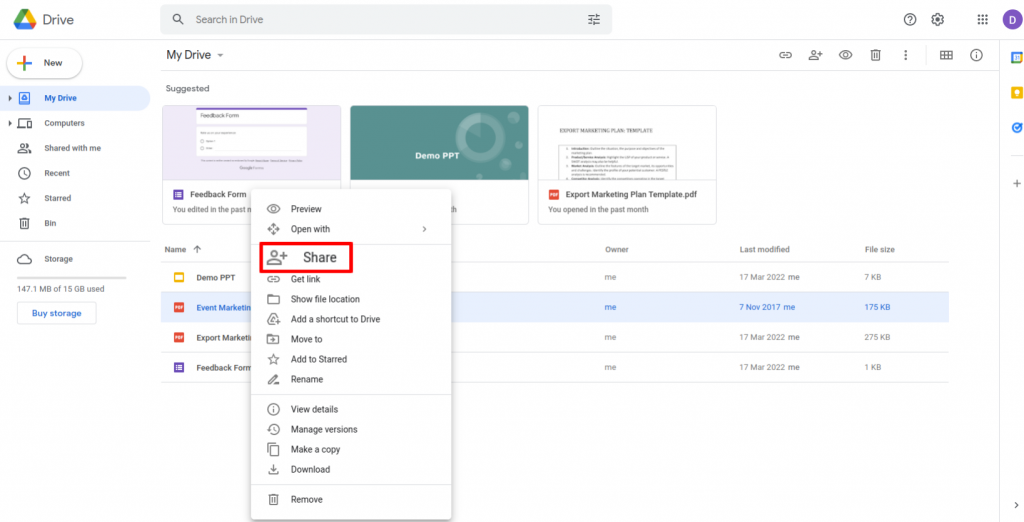
Step 3: Click on Share
Right-click on the uploaded file and click on 'Share.'
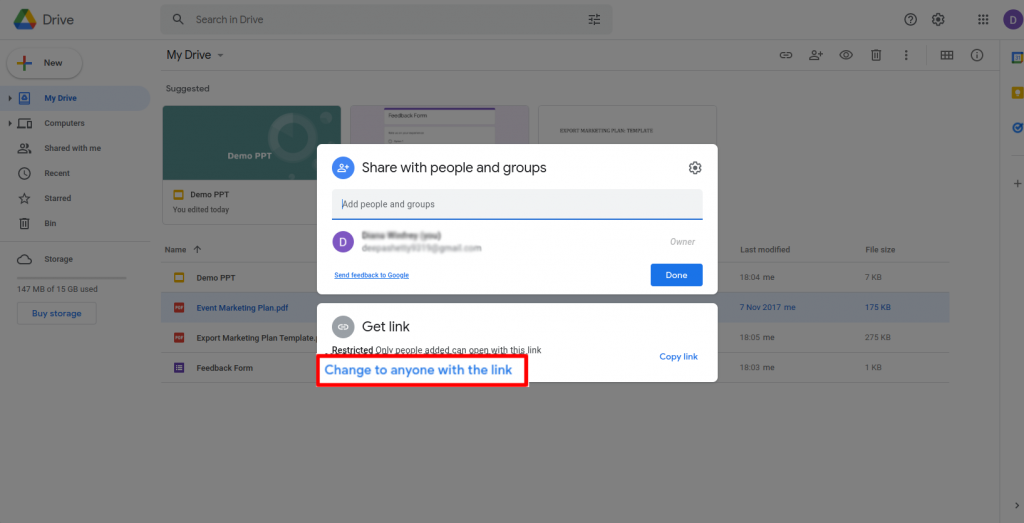
Step 4: Provide Access to View
Click on ‘change to anyone with the link’ to ensure the file has access to view by anyone.
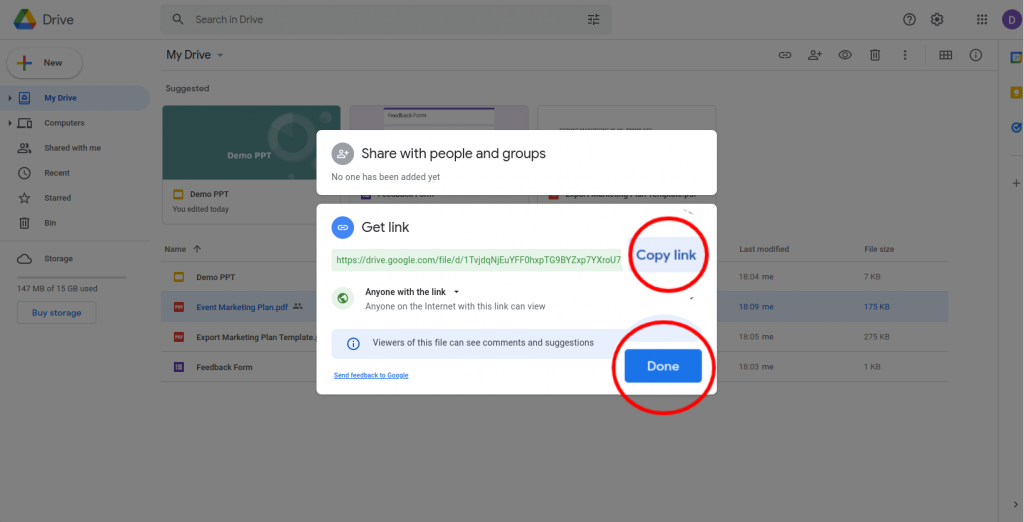
Step 5: Copy Link
Click on ‘Copy link’ and then click on ‘Done.’
Step 6: Paste the Copied Link
Paste the copied link in the 'PDF URL' field.
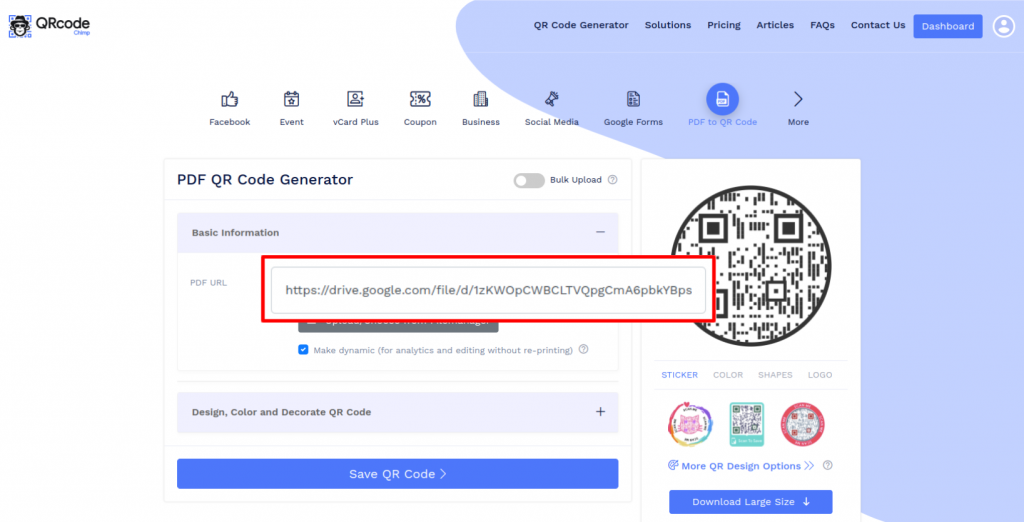
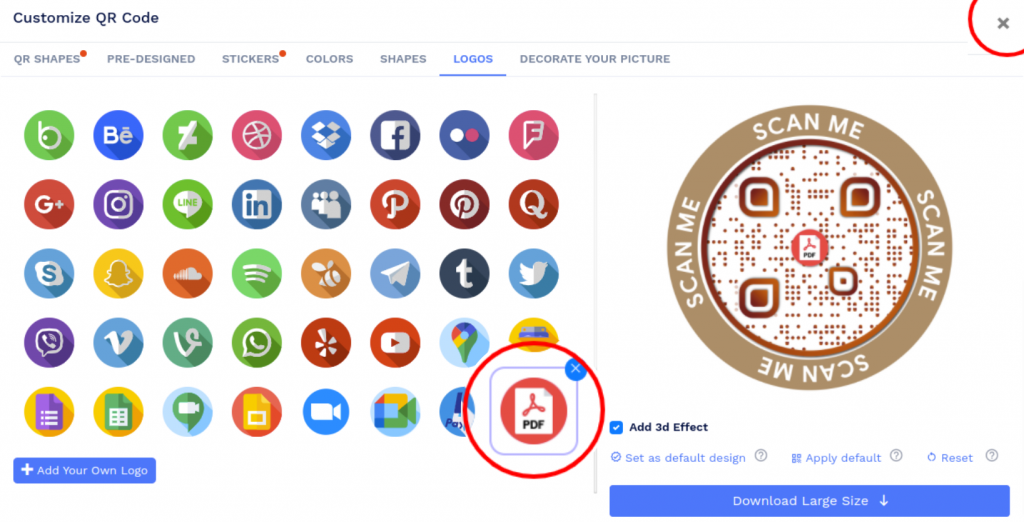
Step 7: Design Your QR Code
Click on 'Design Color and Decorate QR Code' to customize your QR Code design (ex: adding a PDF logo).
Note: Click on the ‘x’ icon of the ‘Customize QR Code’ popup to save changes.
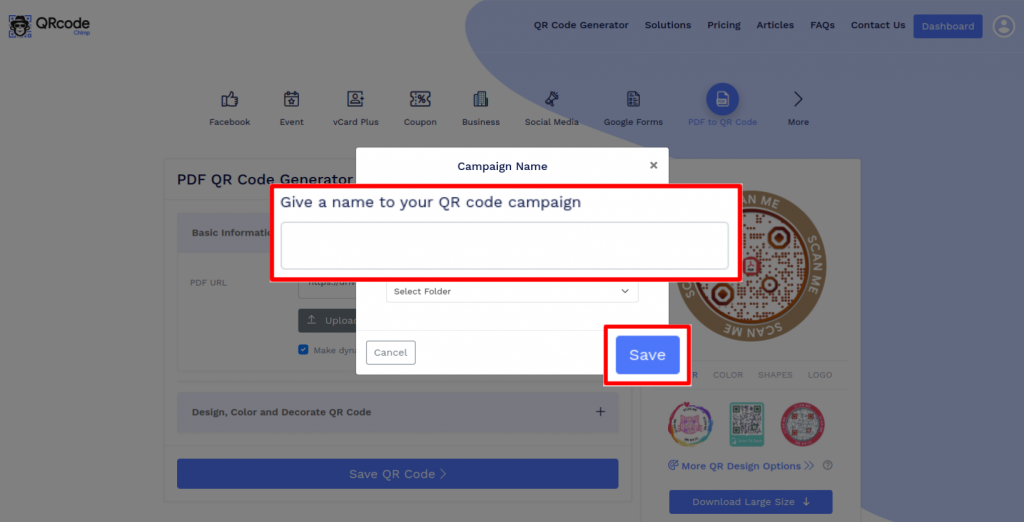
Step 8: Save and Download
Save the QR Code by clicking on the ‘Save QR Code’ button, entering the QR name and then clicking on ‘Save’.
Note: Make sure to scan your QR Code from different devices (iOS and Android) before printing for production.
How do I create a PDF QR code using Dropbox?
You can create a PDF QR code using a PDF file on Dropbox. Follow these steps:
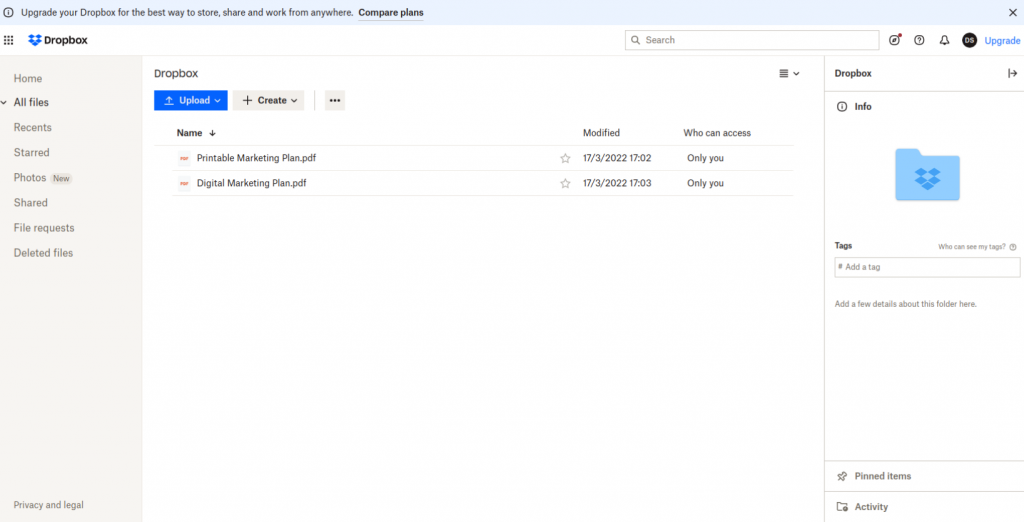
Step 2: Upload Your PDF File
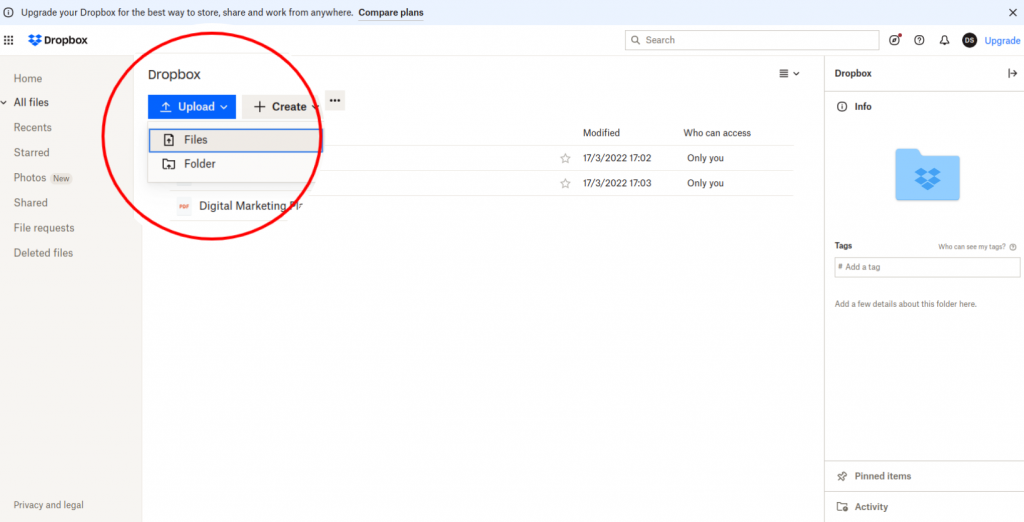
Upload your PDF file by clicking on ‘Upload’ and then on ‘Files.'
Step 3: Click on 'Copy link'
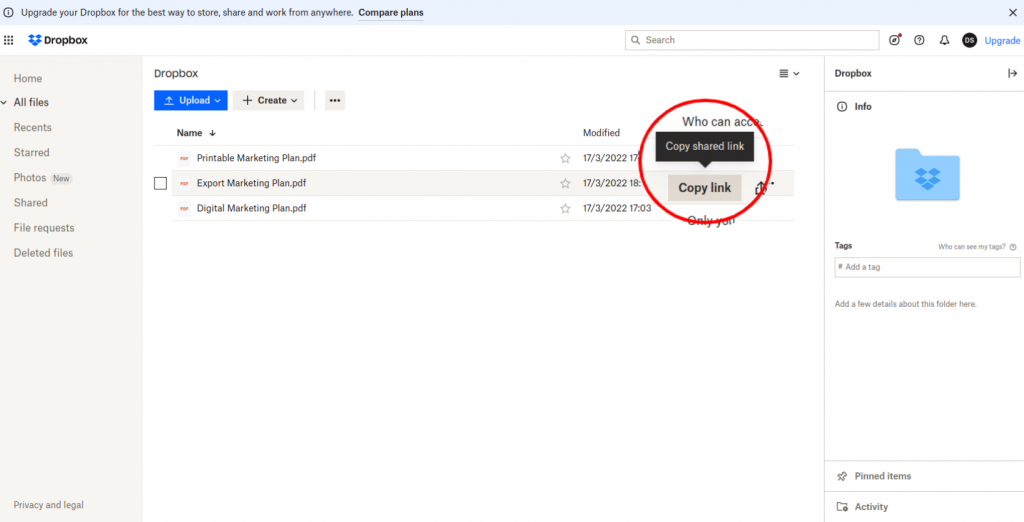
Hover on the uploaded file and click on the ‘Copy link’ button.
Step 4: Paste the Copied Link
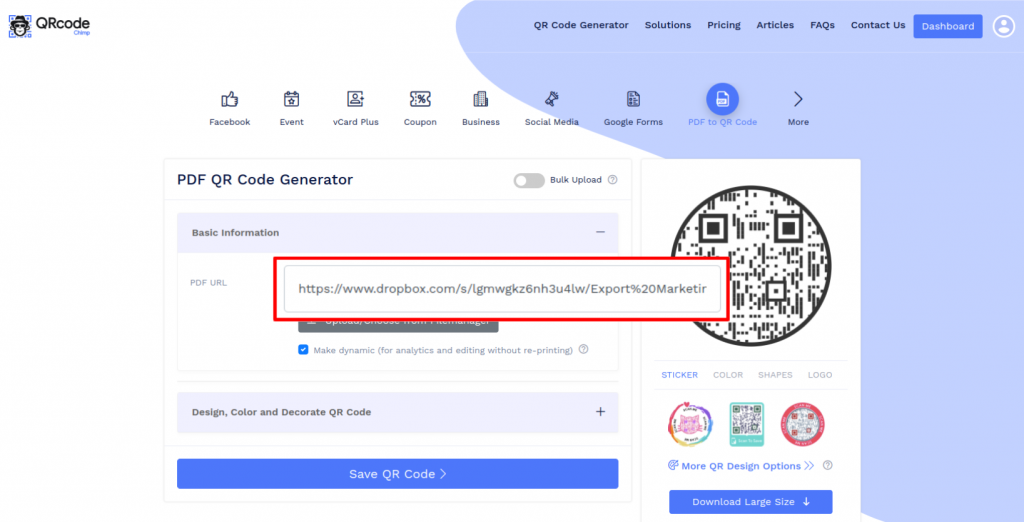
Paste the copied link in the 'PDF URL' field.
Step 5: Design Your QR Code
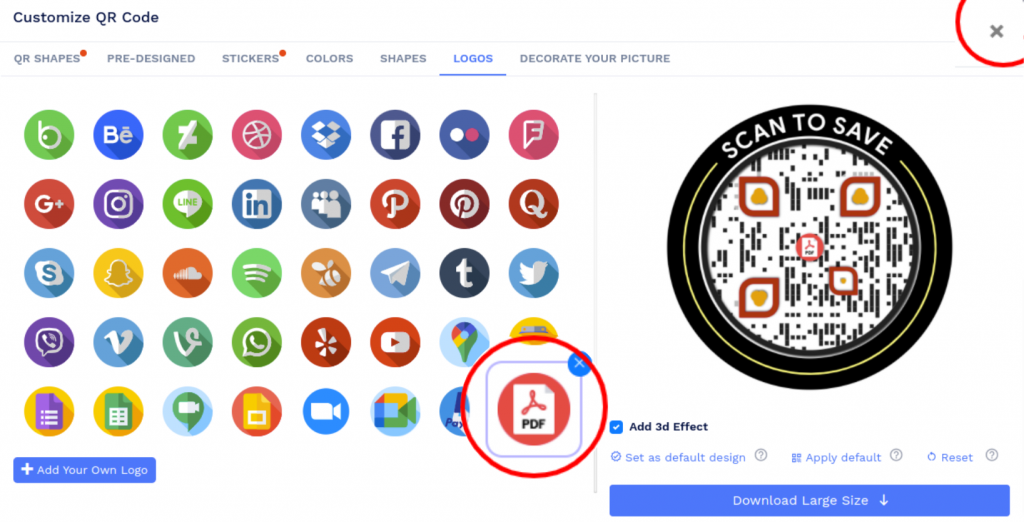
Click on 'Design Color and Decorate QR Code' to customize your QR Code design (ex: adding a PDF logo).
Note: Click on the ‘x’ icon of the ‘Customize QR Code’ popup to save changes.
Step 6: Save and Download
Save the QR Code by clicking on the ‘Save QR Code’ button, entering the QR name and then clicking on ‘Save’.
Note: Make sure to scan your QR Code from different devices (iOS and Android) before printing for production.
Can I create a PDF QR code using an existing PDF link?
Yes. If your PDF is already hosted online, you can create a QR code for it. Follow these steps to create a PDF QR code using an existing PDF link:
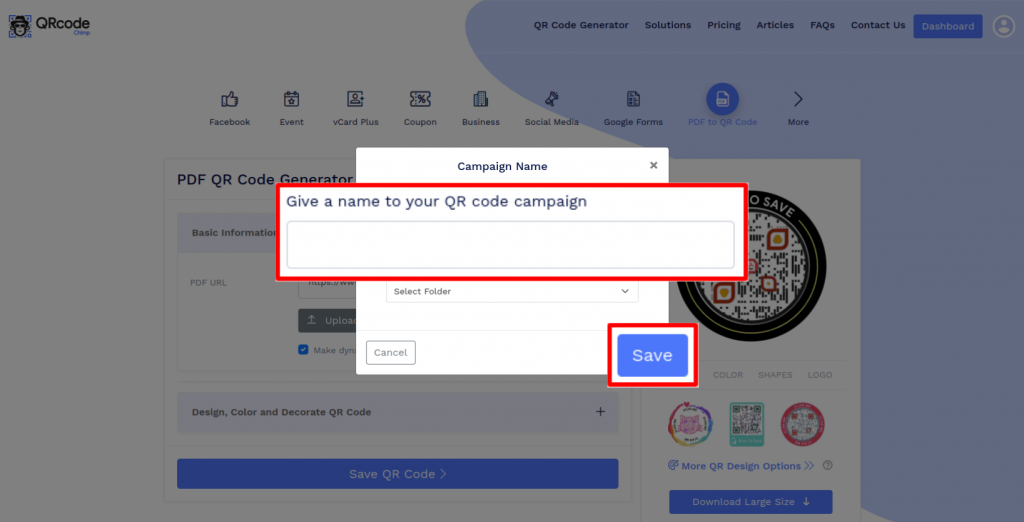
Step 1: Paste the Copied Link
Copy and paste the link in the 'PDF URL' field.
Step 2: Design Your QR Code
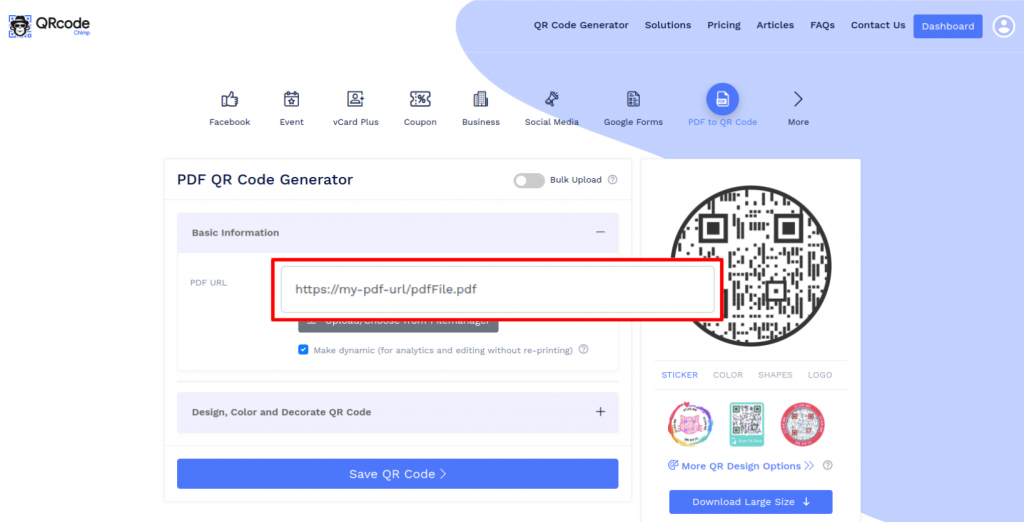
Click on 'Design Color and Decorate QR Code' to customize your QR Code design (ex: adding a PDF logo).
Note: Click on the ‘x’ icon of the ‘Customize QR Code’ popup to save changes.
Step 3: Save and Download
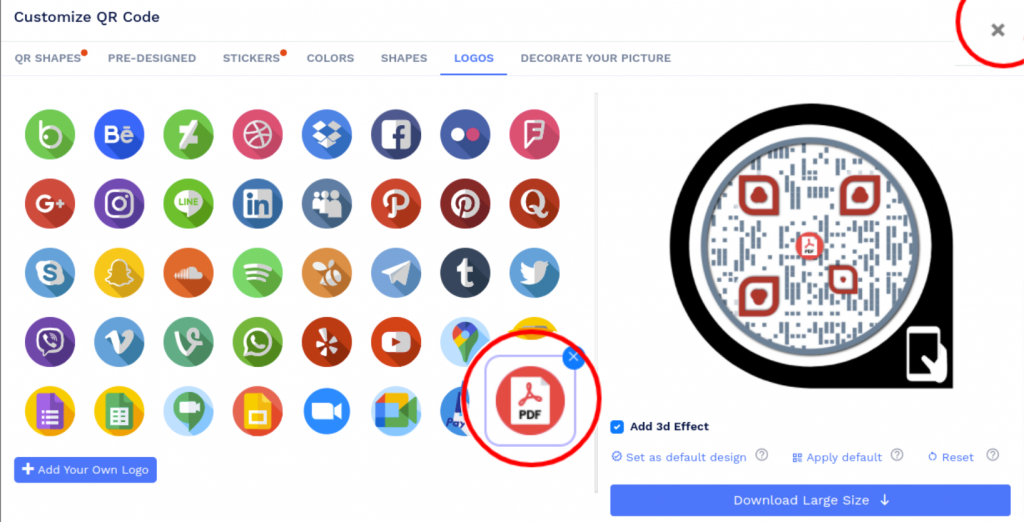
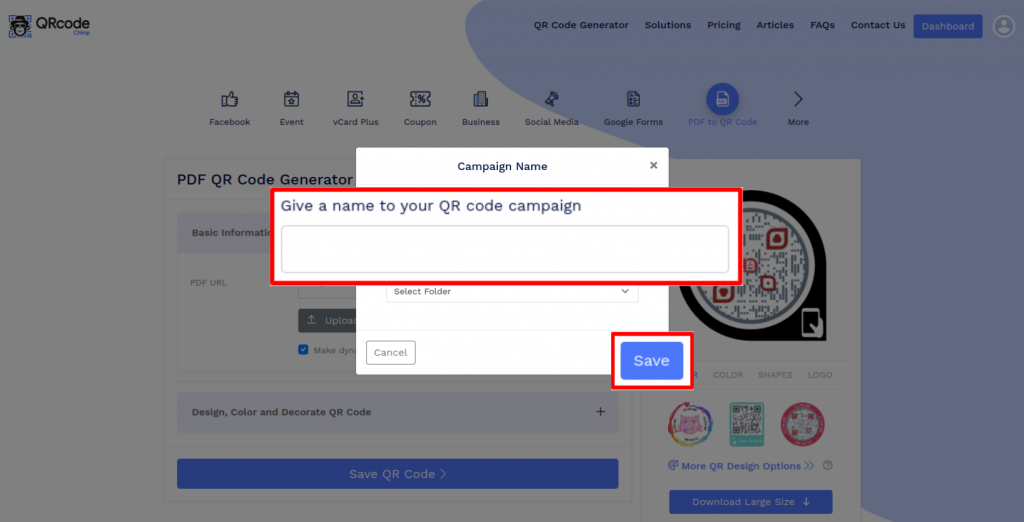
Save the QR Code by clicking on the ‘Save QR Code’ button, entering the QR name and then clicking on ‘Save’.
Note: Make sure to scan your QR Code from different devices (iOS and Android) before printing for production.
Can I convert a Word document into a QR code?
Yes, you can convert a word document into a QR code. Besides PDF files, QRCodeChimp lets you create a QR code for doc files, spreadsheets, and images. Hence, you can convert various file formats into a QR code and share them with your consumers.
Can I update the PDF after printing the QR code?
Yes, if you create a dynamic PDF QR code. You can replace or update the linked PDF from your QRCodeChimp dashboard without changing or reprinting the QR code.
Can I track scans on a PDF QR code?
Yes. Dynamic PDF QR codes allow you to track scan performance, including total scans, location, device, and browser details.
How can users access the PDF from a PDF QR code?
Users can scan the PDF QR code using their phone camera or QR code scanner. The PDF will open or download on their device depending on their browser, device, and file settings.
Why should I use a PDF QR code?
A PDF QR code makes your document easier to access, share, update, and track. It helps users open the right document with one scan and helps businesses distribute content across print and digital channels more effectively.
How do I create a link to a PDF?
Upload the PDF to a cloud storage service like Google Drive, OneDrive, or iCloud, and then share the PDF with a link. Now copy the link you see; this is your shareable PDF link.
Can I create a QR code for brochures, catalogs, or guides?
Yes. You can create PDF QR codes for brochures, catalogs, product guides, white papers, reports, training documents, and other PDF resources. If you want to create a digital food menu with a dedicated menu experience, use QRCodeChimp’s menu QR code solution.
Can I create a QR code for a document?
Yes. You can create QR codes for PDF documents and other supported file formats such as Word documents, spreadsheets, and images.
Hear What Our Customers Have to Say!

Creating QR codes was very easy!
Hello, I'm Marion, and I'm preparing an online congress. I have developed 10 digital guides; these guides are presented in my book and can be accessed directly via a QR code. Creating QR codes was very easy, and it worked well, generating 15+ codes quickly and easily. Thank you, and we look forward to coming back to the platform for our next project.
We feel very happy to provide a rating of 10 out of 10!
We are very much satisfied and really appreciate the QR code service provided by QRCodeChimp.com Customization features like different styles, colors, and adding a logo make the QR codes attractive. Also, PDF generation is up-to-date. QRCodeChimp.com is very useful for our startup business.
Variety of shapes is fantastic!
The QR code is great, having the ability to include a logo in the middle. I used QRCodeChimp to create a code for our club event registration because I was offering entry to the staff of a sponsor, so I wanted a great way to capture their interest. We were fortunate that our club's mascot, a turtle, is included in the range of shapes that QRCodeChimp has as standard.
My Go-to solution!
The best, since I started using it, is my go-to when I need a QR Code. I can easily download QR codes in PDF and PNG formats. I rate QRCodeChimp 9/10.